Guides
Xrefs in AutoCAD: attach, overlay, and how to fix broken paths
- Command
XREF(palette) ·ATTACH/XATTACHto attach- Key decision
- Attachment vs Overlay reference type
- Paths
- Relative path is the safe default (
REFPATHTYPE) - Watch out
- Full paths break on any move: another machine, another server, a renamed folder
An xref keeps a drawing set connected without copying every base plan into every file. This guide covers reference type, paths, repair, binding, and the equivalent tools in three DWG-compatible CAD products.
A drawing opens, but the referenced floor plan is gone. A file-name placeholder text sits where the plan should be.
The cause is simple. The host .dwg stores a path to another file, not the file itself.
Paths break when a file moves, a folder changes name, or someone sends only the host drawing. One path correction often brings the plan back.
Reference type has a separate effect. It controls whether an xref appears again when this drawing is referenced into another drawing.
What an xref actually is
An xref is a live link, not a copy. AutoCAD loads the referenced file when the host drawing opens or when the reference reloads.
An inserted block works differently. It copies objects into the host .dwg at that moment, so later edits to the source do not update that copy.
Xrefs suit shared base plans, title blocks, and multi-discipline work. Each team can update its own file while the host drawing loads the latest saved version.
A PDF can also be referenced as an underlay. It stays a viewed source file, which is different from converting the PDF to DWG geometry, where editable drawing objects are created.
Attach or overlay
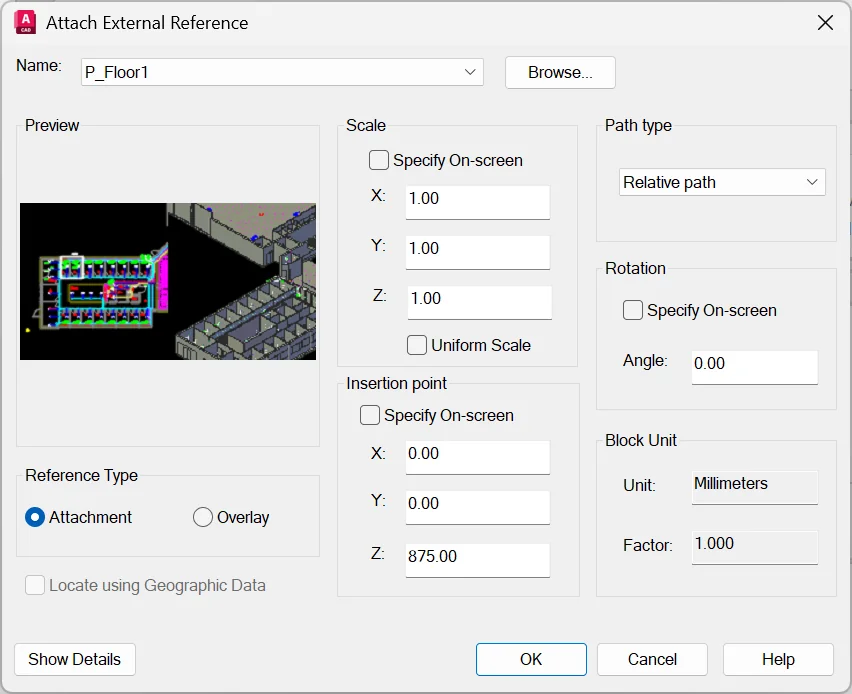
Reference Type appears in the Attach External Reference dialog. The decision controls what happens if this drawing is then used as an xref in another drawing.
An attachment travels through the reference chain. If Drawing A attaches B, then Drawing C references A, B appears in C as a nested xref.
An overlay stops at the current drawing. If Drawing C references A, an overlay in A does not appear in C.
Overlay is the safer default in multi-user work because it prevents circular references and uncontrolled nesting. Use it when a background is needed only for the current file.
For example, a mechanical drafter can overlay the architectural floor plan in a duct layout. When a coordination drawing references that duct layout, it does not load the architectural plan again.
Attach when the chain must carry through. For example, a building coordination drawing can attach a structural grid that must also appear when the coordination drawing is referenced into a sheet file.
Full path, relative path, no path
A full path stores the complete drive and folder address, such as a mapped network drive and every folder below it. It fails as soon as the project moves to another machine, drive, or server location.
A relative path stores the route from the host drawing to the reference. It is safest for a project folder.
The host and reference can move together while their folder relationship stays the same.
No path stores only the file name. It can work when the host drawing, reference, and configured search paths are tightly controlled, but it makes troubleshooting less direct.
Use REFPATHTYPE to set the default for new references: 0 for no path, 1 for relative, and 2 for full. It does not change references that are already attached.
To change the path type of an existing loaded reference:
- Open the External References palette with
XREF, then select the reference. - Right-click and choose Change Path Type, then choose Make Relative. Use Remove Path only when the reference will stay beside the host drawing or in a managed search path.
- Save the host
.dwg, reopen it, and check that the Saved Path is now relative.
When a reference breaks
The first contact with a broken reference is often a warning at file open. AutoCAD counts the files it cannot locate and offers a way forward.
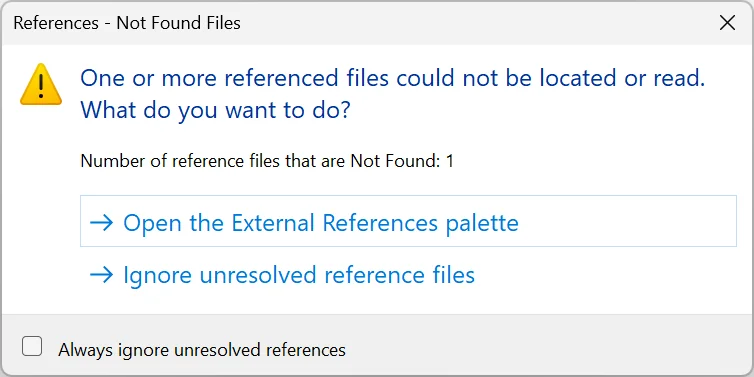
Choose Open the External References palette. Arriving through the warning, AutoCAD 2027 (R26.0) opens the palette with its Missing toggle on.
The toggle is new in the 2027 release. Earlier versions open straight to the normal palette, covered below.
The Missing view is not the normal palette. The list is filtered to the references AutoCAD cannot locate, with the repair tools beside it.
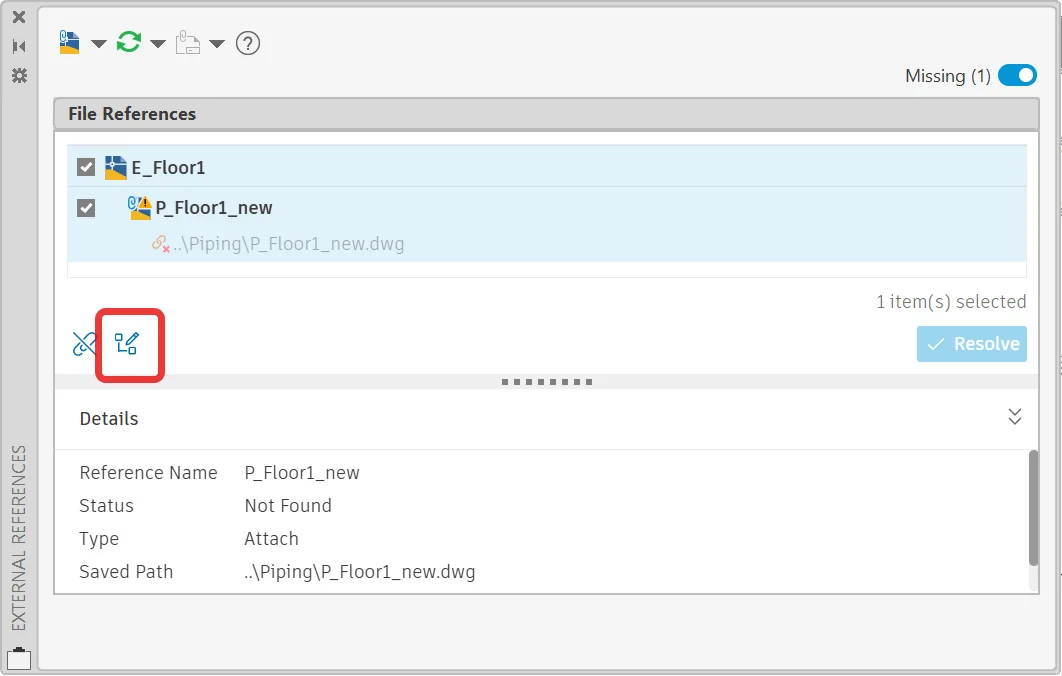
In the Missing view, the right-click menu is not the route. Three controls handle the filtered list instead.
Update Paths repaths a missing reference by hand: tick the reference, click Update Paths, and point to the correct folder and file name. Only the stored path changes; the referenced file does not move.
Resolve accepts a path the program has suggested for the selected references. Detach, to the left of Update Paths, removes a reference that is no longer needed.
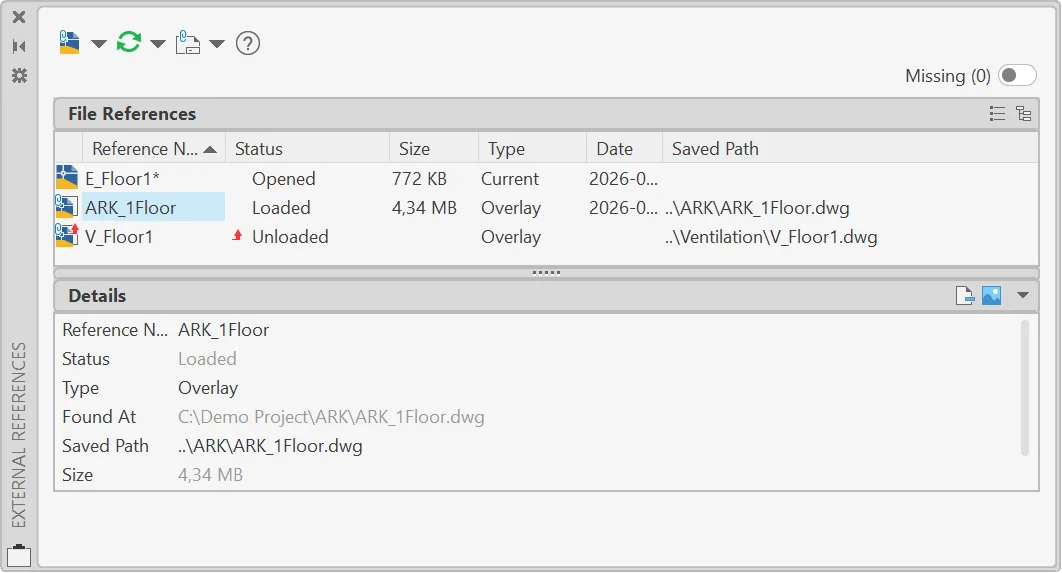
Turn the Missing toggle off and the normal palette returns: the full reference list with the Status column, and the right-click menu used below. The same palette opens at any time with XREF.
Its Status field tells you what AutoCAD can do with each reference.
Loaded means AutoCAD has the file and displays it. Not Found means AutoCAD cannot locate the file in any valid search path.
Unresolved means AutoCAD cannot read the referenced file.
In Details view, compare the Saved Path and Found At columns. Saved Path is the address stored in the host drawing.
Found At is the location where AutoCAD actually found the file, and it can differ from Saved Path.
To repath one broken reference in the normal view:
- In the palette, select the entry with a Not Found status.
- Right-click, choose Select New Path, then browse to the actual source
.dwgand open it. - If AutoCAD offers to apply the same folder path to other missing references, accept it only when they belong in that same folder. Confirm that the status changes to Loaded.
When several missing entries sit below one top-level missing folder, fixing that folder usually repairs several references at once. The same approach is safer than editing each path separately.
If the file is genuinely gone, deleted, renamed, or never delivered, no path edit will fix it. Request the file.
Bind, and when not to
Binding converts an xref into a local block inside the host drawing. The link to the source file is removed in that saved copy.
Bind preserves dependent layer and style names by adding the xref name and a number. Insert converts the xref into a local block but merges matching layer and style names into the host drawing without that prefix.
Binding is legitimate for archive copies and for a client who requires one flat .dwg. Save a separate copy before binding so the working set keeps its live references.
Binding is the wrong tool for sending a live drawing set. Package the drawing and its references for sending instead.
BricsCAD, DraftSight, and ProgeCAD
BricsCAD uses the same XREF and XATTACH workflow. Its Attachments panel lists attached drawings, PDFs, images, and point clouds, and lets users switch an xref between Attach and Overlay.
DraftSight manages xrefs in the References palette. Its official documentation confirms support for Attach, Overlay, and path choices, plus binding a loaded reference as Bind or Insert.
ProgeCAD supports XREF through its Xref Manager. Its manual documents Attachment and Overlay behavior, including nested references, and describes linked source drawings that update when reloaded or reopened.
Across all four products, keep the project folder together and prefer relative paths. Use Overlay unless the reference must continue through the chain.
Sources
- Autodesk. “External References (Xrefs)” and “REFPATHTYPE (System Variable).” AutoCAD Documentation. Accessed July 2026. https://help.autodesk.com/view/ACD/2026/ENU/
- Autodesk. “External References Palette (Missing Toggle).” AutoCAD 2027 Documentation. Accessed July 2026. https://help.autodesk.com/view/ACD/2027/ENU/?guid=GUID-7947385D-1A5D-4474-9AB9-FD5E46ADEF53
- Autodesk. “To Fix Missing or Not Found External References.” AutoCAD Documentation. Accessed July 2026. https://help.autodesk.com/view/ACD/2026/ENU/
- Bricsys. “Attach External Reference Dialog Box” and “Attachments Panel.” BricsCAD Reference Guide. Accessed July 2026. https://help.bricsys.com/
- Dassault Systèmes. “Using the References Palette.” DraftSight Documentation. Accessed July 2026. https://help.draftsight.com/
- progeSOFT. “Attaching External References.” progeCAD Professional Manual. Accessed July 2026. https://www.progesoft.com/products/progecad-professional/manual