Guides
ETRANSMIT: how to send a DWG with all its xrefs and fonts intact
- Command
ETRANSMIT· or Application Menu ▸ Publish ▸ eTransmit- Bundles
- Drawing + xrefs (incl. nested) + linked raster images and PDFs + SHX/TTF fonts + plot styles (CTB/STB)
- Output
- ZIP archive, self-extracting EXE, or a plain folder
- Watch out
- Missing reference files (xrefs, linked images) are the usual problem; check they are in the file list before sending
The recipient opens the DWG. The xrefs are missing, the title block font has been substituted, and the plot styles do not match.
The sender copied the DWG and nothing else.
A DWG holds references to other files, not the files themselves. External references (xrefs), linked raster images and PDFs, fonts, and plot style tables may all live in separate locations on the sender’s machine.
Sending only the DWG leaves them behind.
ETRANSMIT resolves this. It reads the active drawing and traces every dependency it can locate. The drawing and its related files then go into one package: a ZIP archive or a folder, depending on the transmittal setup.
How to run it
In AutoCAD, type ETRANSMIT at the command line or go to the Application Menu > Publish > eTransmit. BricsCAD and ProgeCAD also support ETRANSMIT.
DraftSight users reach the same result with Pack and Go. The purpose is the same: collect the drawing and its dependent files into one package before sending.
The work itself takes three steps.
- Launch the command.
ETRANSMITopens the Create Transmittal dialog. - Review and select the included files. The dialog lists every dependency it can resolve before anything is written to disk. Go through the list and confirm everything needed is checked.
- Adjust the settings and create the package. The Transmittal Setups button opens the export settings, covered in section 03. When they are set, click OK in Create Transmittal to generate the package.
What gets included
ETRANSMIT captures several categories of dependencies.
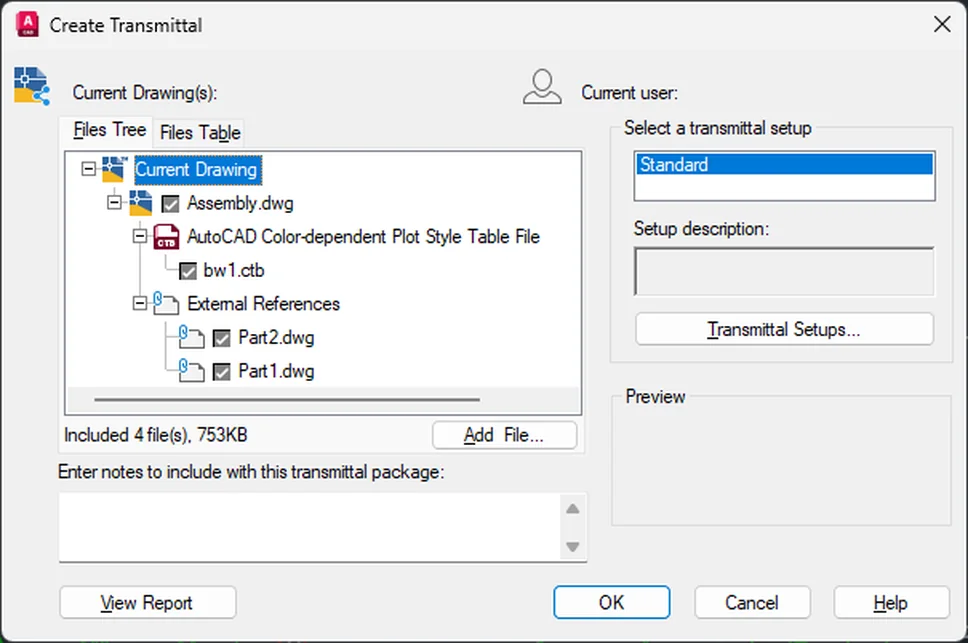
External references. All xrefs attached to the drawing, including xrefs nested within those.
A project with a base plan, an architectural overlay, and a structural overlay all travel together in the same package.
Linked raster images and PDFs. A raster image can be linked or embedded; a PDF can be linked as an underlay or converted to geometry. ETRANSMIT packages specifically the linked files, when they are found and selected in the transmittal.
Font files. SHX and TTF fonts referenced in the drawing’s text styles. Font substitution is among the most common reasons a drawing looks wrong after a file transfer.
Plot style tables. CTB and STB files attached to the layouts. Without them, the recipient’s output runs on their own defaults, which may produce different lineweights and colors.
The drawing itself. The active DWG is always included.
Transmittal settings can also capture Sheet Set data files and other linked documents when those are part of the project.
The settings worth knowing
ETRANSMIT is simple, but the setup options matter. All of them live behind the Transmittal Setups button.
- In the Create Transmittal dialog, click Transmittal Setups.
- A chooser window opens first. Pick Modify to edit the default setup, or New to create a named one. Name a setup per client or project and reuse it per recipient.
- Adjust the settings in the Modify Transmittal Setup dialog that opens.
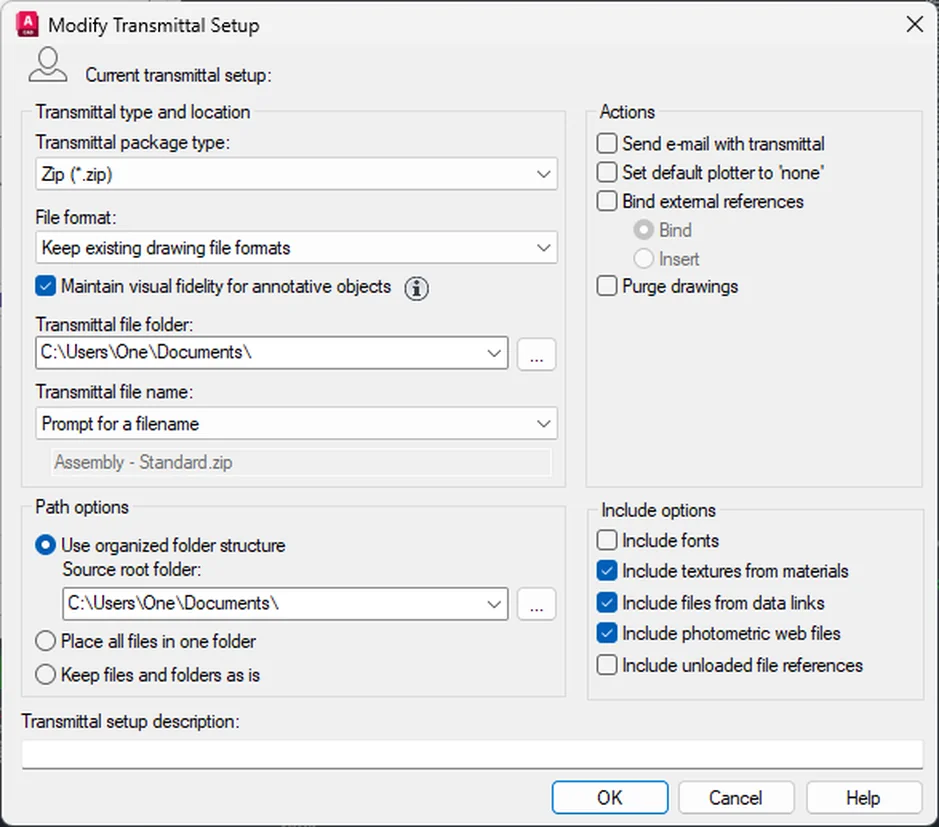
- Transmittal package type: ZIP. A ZIP archive is usually the safest format for email, cloud sharing, and project delivery. Some CAD programs can also create a folder package or other package types.
- File format. Save the package to an older DWG format if the recipient uses older CAD software. In Civil 3D or AutoCAD Architecture, this list also handles AEC conversion: pick AutoCAD 2018 Drawing Format with Exploded AEC objects to convert AEC custom objects into plain AutoCAD geometry.
- Path options. Three choices for the folder structure:
- Use Organized Folder Structure is the default on first use. It creates support folders such as Fonts and PlotCfgs when needed, and converts many absolute paths to relative ones. References then resolve on the recipient’s machine without manual path editing.
- Place All Files in One Folder suits recipients who need the simplest possible package, when the project does not depend on a folder hierarchy.
- Keep Files and Folders As Is preserves the existing structure when it must survive intact on the recipient’s system.
- Set Default Plotter to ‘None’. Check this when using anything other than AutoCAD’s built-in PDF plotter. The sender’s plotter configuration means nothing to the recipient, so it should be cleared from the package.
- Bind external references. Binds the xrefs into the drawings themselves, across the whole set at once, so no separate xref links remain. Useful for archive copies, or when a client explicitly asks for a single DWG. Binding applies only to DWG xrefs; raster images and other non-DWG attachments still travel as separate files.
- Purge Drawings. Automatically strips unused objects, such as unused blocks and layers, from the drawings before packaging.
One limit to know
ETRANSMIT can only bundle files it can resolve. An xref with a broken path on the sender’s machine will not appear in the package.
The dialog flags unresolved files before the package is created. If a dependency shows as missing, open the External References palette and correct the path before running ETRANSMIT again.
Sending an incomplete package and following up with corrections costs more time than fixing the paths first.
Check the package before sending
After generating the archive, extract it to a temporary folder and open the DWG from that location. Always verify that xrefs, linked images and PDFs, fonts, and plot styles resolve correctly.
This step catches most missing-file problems before the client or colleague sees them.
The correct default
Sending a DWG is fast and appears sufficient until the recipient reports missing references.
For any drawing that leaves the building, ETRANSMIT is the correct method. Everything the recipient needs to open the file as intended arrives in one package, and the follow-up exchange does not happen.
Sources
- Autodesk. “eTransmit (Command).” AutoCAD Documentation. Accessed May 2026. https://help.autodesk.com/view/ACD/2026/ENU/
- Autodesk. “Create Transmittal Dialog Box.” AutoCAD Documentation. Accessed May 2026. https://help.autodesk.com/view/ACD/2026/ENU/
- Bricsys. “ETRANSMIT.” BricsCAD Reference Guide. Accessed May 2026. https://help.bricsys.com/
- Dassault Systèmes. “Pack and Go.” DraftSight Documentation. Accessed May 2026. https://help.draftsight.com/
- progeSOFT. “eTransmit.” progeCAD Professional Manual. Accessed May 2026. https://www.progesoft.com/products/progecad-professional/manual