Guides
Convert a PDF to DWG in AutoCAD: PDF Import and the SHX text step
- Command
PDFIMPORT· or Insert tab ▸ Import panel- Requires
- A vector PDF; AutoCAD 2017 or newer
- Output
- AutoCAD objects: polylines, hatches, TrueType text
- Watch out
- SHX text arrives as line geometry, not text; recover it with Recognize SHX Text
A vector PDF plan arrives from a client. The project needs it as editable DWG geometry, not as an underlay to trace by hand.
AutoCAD’s PDF Import reads a vector PDF and rebuilds it as AutoCAD objects, including lines, arcs, hatches, and text. The tool has shipped since AutoCAD 2017, and no third-party converter is required.
A separate workflow marks up a PDF sheet without converting it at all, using the PDF markup tools built for 2D CAD. PDF Import covers the opposite case: turning the sheet into geometry that can be edited directly.
Run the import
PDFIMPORT lives on the Insert tab, in the Import panel.

Click the button and pick a vector PDF from disk. AutoCAD opens the Import PDF dialog.
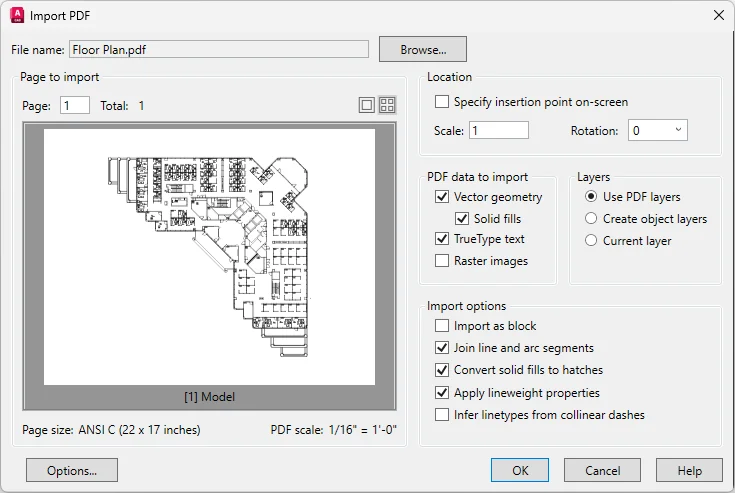
Import with the default settings on the first pass. If the result looks wrong, re-import and adjust the settings covered in section 03.
A multi-page PDF needs a page choice above the preview pane. The scale AutoCAD recognizes for that page, the PDF scale, appears underneath the preview.
Click OK and the geometry lands in the drawing.
Check the scale
Measure a known dimension every time, right after the import completes.
If the size is off, correct it with SCALE. The command’s Reference option is the fastest way to match a wrong dimension to the correct one.
The import settings
The Import PDF dialog groups its options into four sections, in the order they appear in the dialog.
Location
- Specify insertion point on-screen places the geometry with a pick. Unchecked, the PDF drops in at the origin.
- Scale applies a multiplier to the imported geometry, the same effect as running
SCALEafterward.
PDF data to import
- Vector geometry brings in the PDF’s line work as AutoCAD objects such as polylines.
- Solid fills attempts to recognize continuous filled areas. They can arrive fragmented, and do not always match the source pattern; if the fills come in badly, fix them by hand or re-import without this option and draw the fills fresh.
- TrueType text imports text objects that use TrueType fonts. Text set in an SHX font has no equivalent here, since PDF stores it as geometry instead.
- Raster images brings in any embedded raster data as a linked image saved to disk. The save location is controlled by the
PDFIMPORTIMAGEPATHsystem variable.
Layers
- Use PDF layers creates AutoCAD layers from the PDF’s own layers, prefixed with PDF, and sorts objects onto them. A PDF with no layers gets object-type layers instead.
- Create object layers sorts imported objects onto four layers by type: PDF_Geometry, PDF_Solid Fills, PDF_Images, and PDF_Text.
- Current layer places every imported object on whichever layer is active.
Import options
- Import as block brings the whole converted PDF in as a single block instead of separate objects.
- Join line and arc segments merges consecutive segments into a single polyline wherever it can. Worth keeping on by default.
- Convert solid fills to hatches turns imported 2D solids into hatch objects, excluding any identified as arrowheads. Also worth keeping on by default;
QSELECTlater isolates the hatches and arrowheads so their properties can be fixed in one pass. - Apply lineweight properties carries the source lineweights into the imported objects, or discards them if unchecked.
- Infer linetypes from collinear dashes merges short, aligned dash segments into a dashed polyline using a PDF_Import linetype. The detection is not perfect: turn it off if regular short segments or underlined text keep producing false dashed lines.
SHX text after import
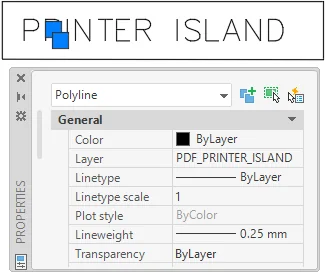
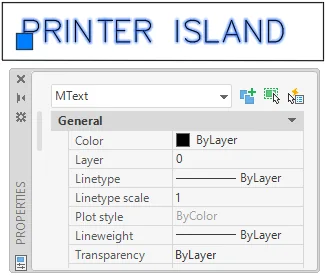
PDF stores TrueType text as actual text, but the format has no concept of AutoCAD’s SHX fonts. To preserve how SHX text looks, the PDF saves it as geometry instead.
After import, that text is polylines, not an editable text object. No font is involved at all; the geometry just traces the letter shapes, which is why AutoCAD can recognize it back into text.
Missing fonts are a separate transfer problem: in a DWG sent without its font files, text stays text but renders in a substitute font.
Recognize SHX Text
Recognize SHX Text converts selected SHX geometry into individual MText objects. The command behind it is PDFSHXTEXT.
Three habits improve the result.
- Pick the SHX font that most closely matches the geometry before running the command.
- Select only the SHX geometry, nothing else in the selection set.
- Work in small batches. Problems are easier to spot, and the selection is less likely to pick up unrelated geometry by accident.
The recognized text direction depends on the current UCS. Its X axis needs to align with the direction the text runs.
Run UCS, choose Object, and pick a horizontal segment of the SHX geometry to align it automatically.
Objects that convert successfully highlight briefly. Anything that stays unhighlighted needs a closer look, and missing text is often fastest to retype by hand.
Recognition settings
Recognition Settings holds the list of SHX fonts AutoCAD compares against the geometry. Order matters: AutoCAD checks the list from top to bottom until the Recognition Threshold is met, and fonts left unchecked are skipped.
The threshold is the share of the geometry that has to match a font before it converts to text. A low value produces text even when some characters go unrecognized; a high value ensures the closest possible font gets used.
Combine Text
Combine Text merges single-line and multi-line text objects into one or more MText objects, keeping size, font, and color where it can.
Quality and limits
Result quality tracks the source PDF. A clean vector PDF converts well, and a complex or messy one needs more cleanup afterward.
SHX recognition is always a separate pass, never automatic. Budget time for it on any drawing with a meaningful amount of SHX text.
PDF Import turns a vector sheet into working geometry in one pass. The font step afterward is what makes the imported text usable rather than just visible.
Sources
- Autodesk. “PDF Import (Command).” AutoCAD Documentation. Accessed July 2026. https://help.autodesk.com/view/ACD/2027/ENU/
- Autodesk. “Recognize SHX Text (Command).” AutoCAD Documentation. Accessed July 2026. https://help.autodesk.com/view/ACD/2027/ENU/